Using Victoury in Multiple Browser Tabs
A user can use Victoury in multiple browser tabs for a smoother workflow. Entities can be edited freely across several browser tabs or windows. Some examples of this include:
Viewing a product's supplier while still viewing the product's details
Checking several invoices at once
Checking availability and booking a product
For changes in any of the Settings, please refresh your open browser windows in order to see the changes.
Selecting All Items Within A List
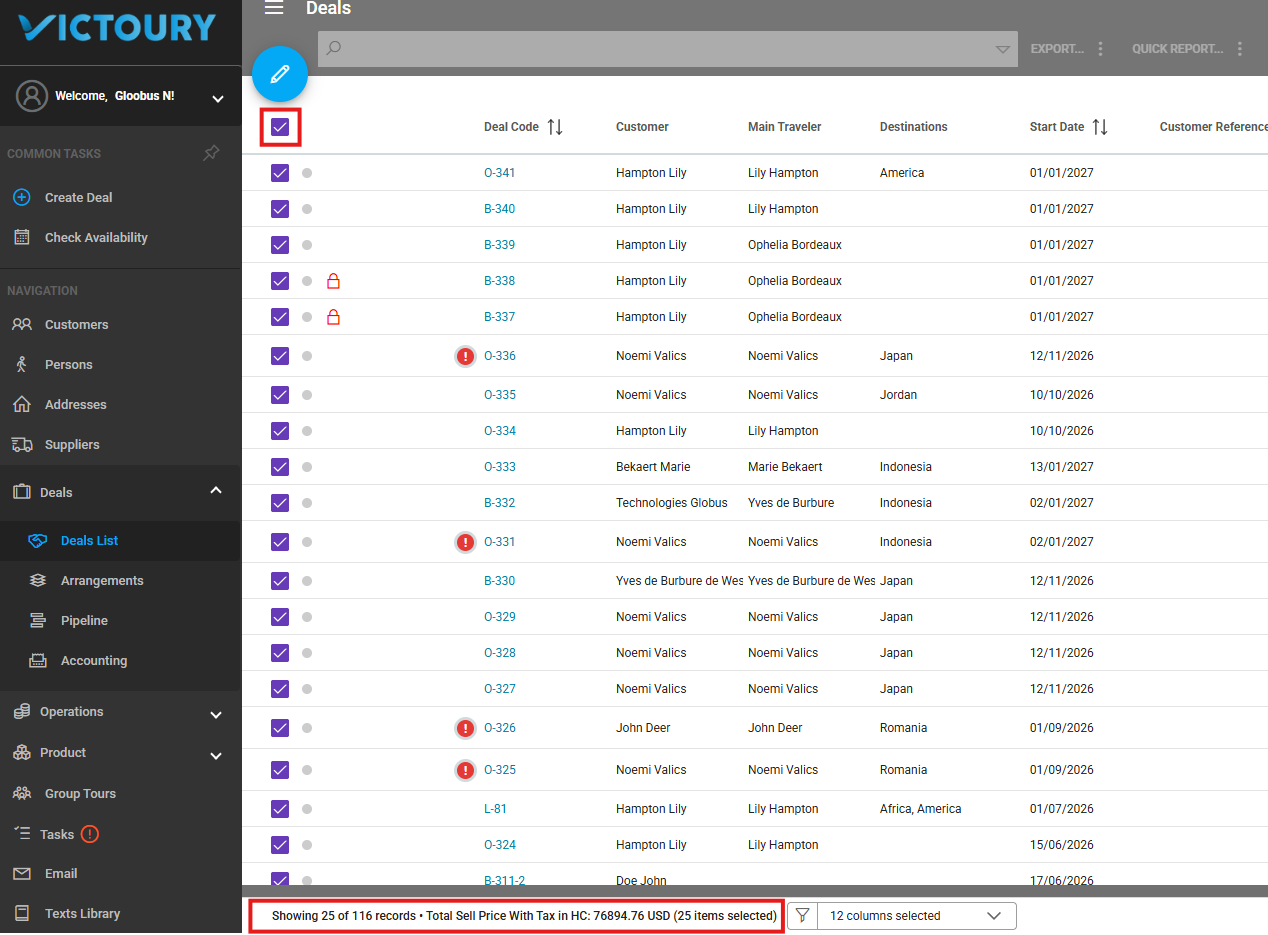
All visible items can be selected with the checkbox at the top of the list. If this is done in a listing, a message at the bottom of the screen displays the amount of items visible, the total amount, and the amount selected.
Column Filtering in Listings
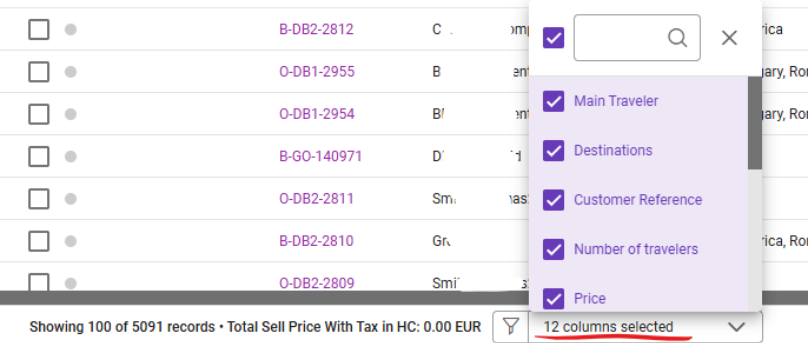
In several Listings across Victoury operators can filter some of the columns available. The filters can be found at the bottom of the screen by clicking on the drop down list next to the funnel icon.
The column preferences set are saved for every user. Currently, the following listings have column filters:
Deals
Arrangements
Accounting
Customer Invoices
Customer Payments
Prices
Group Tours
Ticket Stock (additional module enabled on demand)
Insurances (additional module enabled on demand)
Section status saved in browser
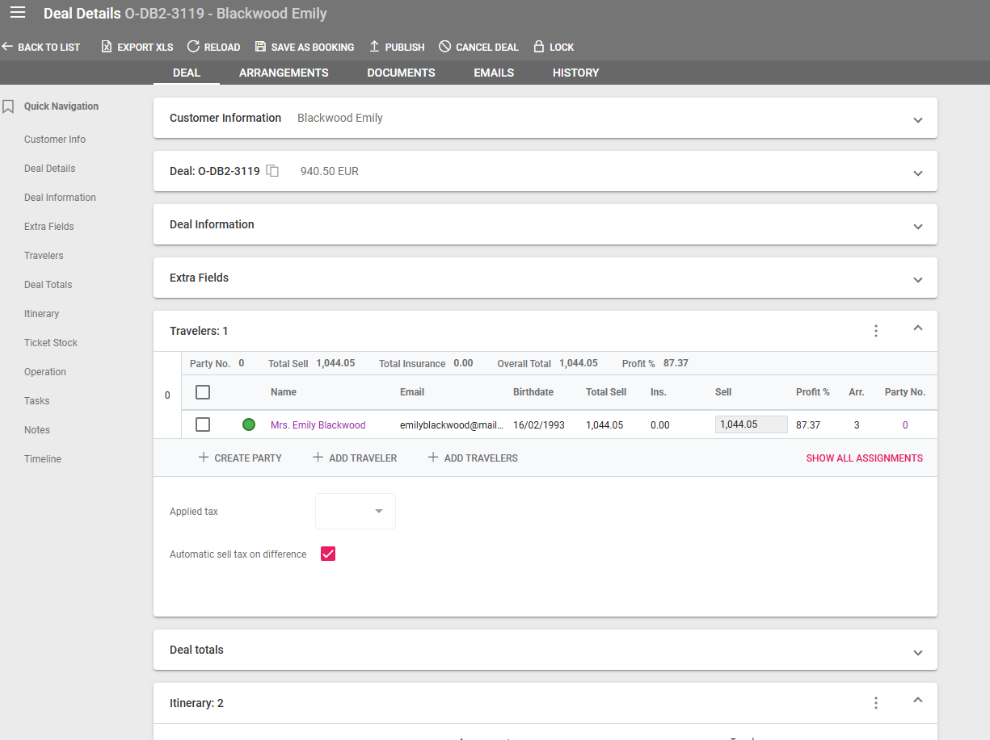
Operators’ preferences of collapsing or opening a section across the system is saved in their browser. All sections that can be closed or expanded maintain their state up until your browser’s cache is cleared. These preferences aren’t saved on different browsers or devices.
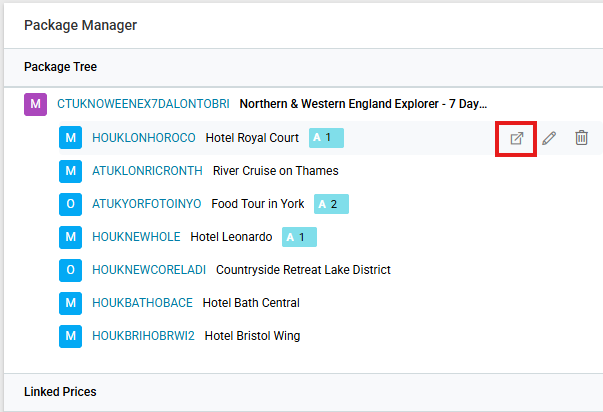
Open in New Tab Icon
Across the system, operators may come across an icon with a square and an arrow pointing outwards. This is a button that can be clicked to open the related entity in a new tab for easier viewing.
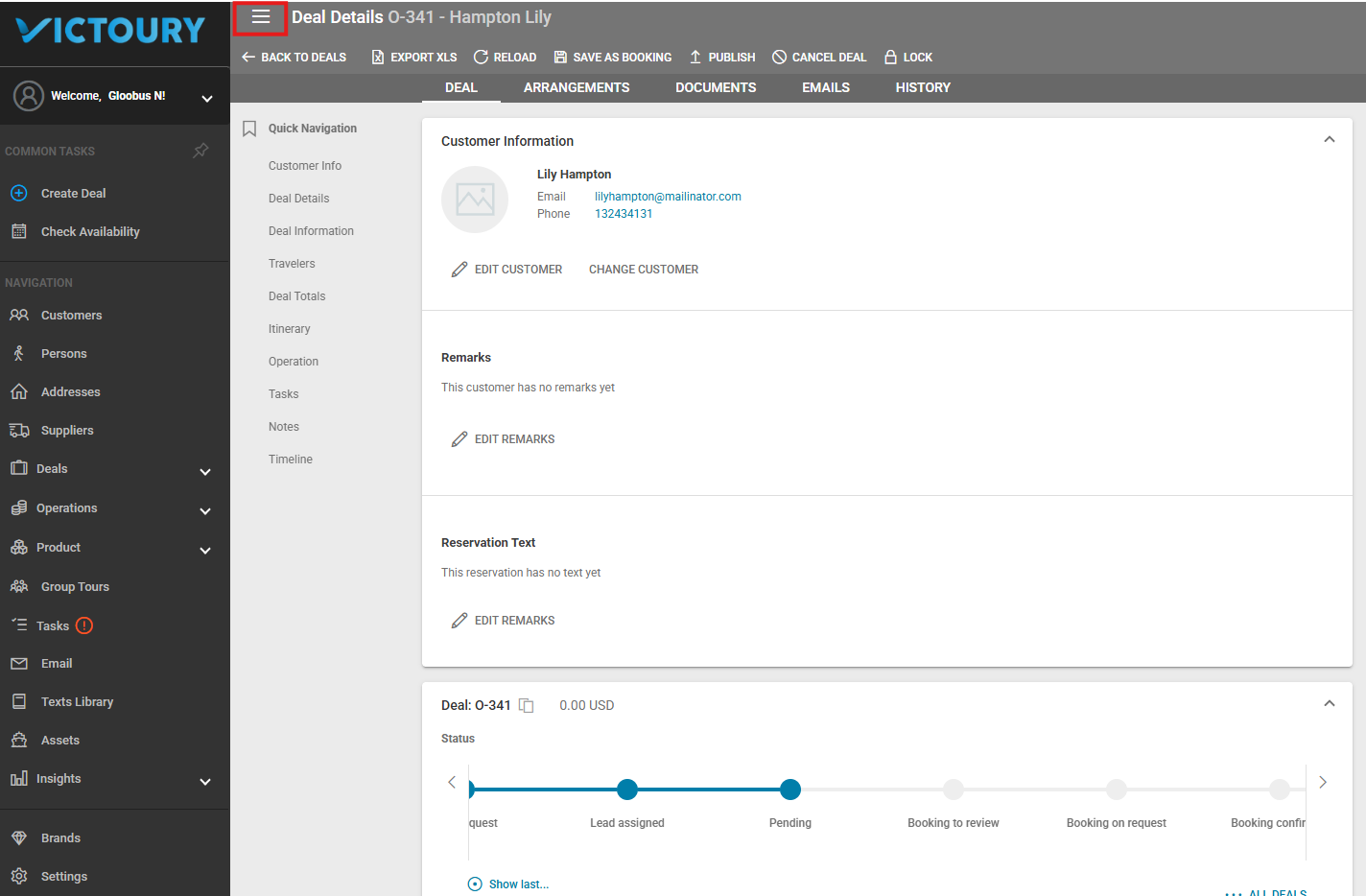
Collapse The Left Menu
In case more screen space is required, the left hand side menu can be collapsed by clicking on the hamburger icon at the very top left of the grey top menu.