Victoury lets you register down payments and rest payments on Supplier Invoices, giving you greater control over how and when supplier payments are tracked and due.
Where to Set Up Down and Rest Payments
Down and rest payment settings appear when you create a new Supplier Invoice. You can start this process from either:
Deal Details / Operations — when creating a new supplier invoice
Deals Listing — by checking a deal and clicking the pencil icon
For steps on how to create a supplier invoice, please check the dedicated article here.
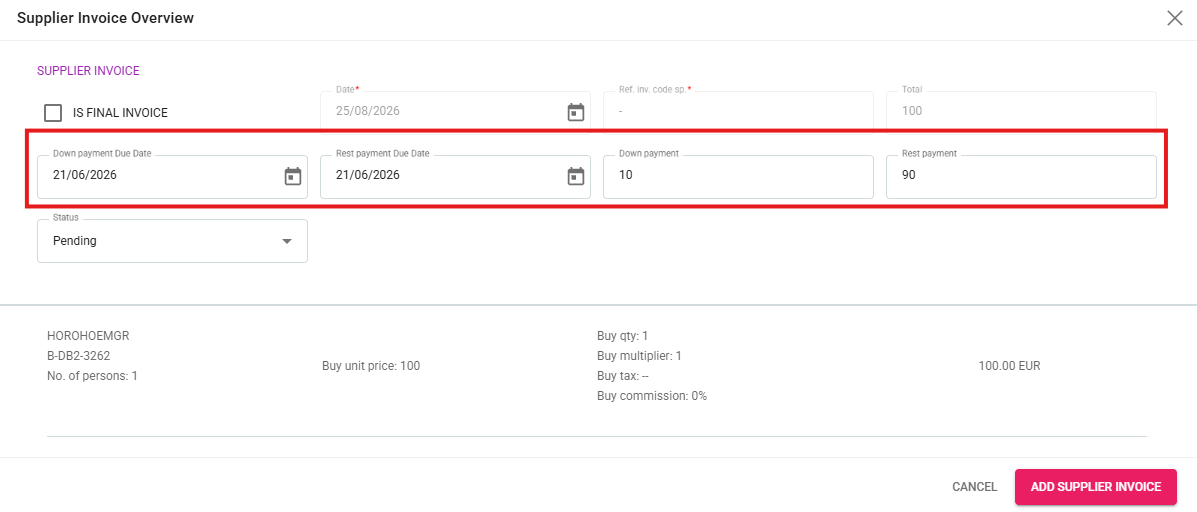
On the second step of the Supplier Invoice creation process, you'll find four fields for managing these payments:
Down Payment Due Date
Rest Payment Due Date
Down Payment
Rest Payment
Note: The Rest Payment field reflects the invoice's total payment amount. If an invoice has no down payment, enter the full amount in the Rest Payment field rather than splitting it across both fields.
Modifying Amounts and Due Dates
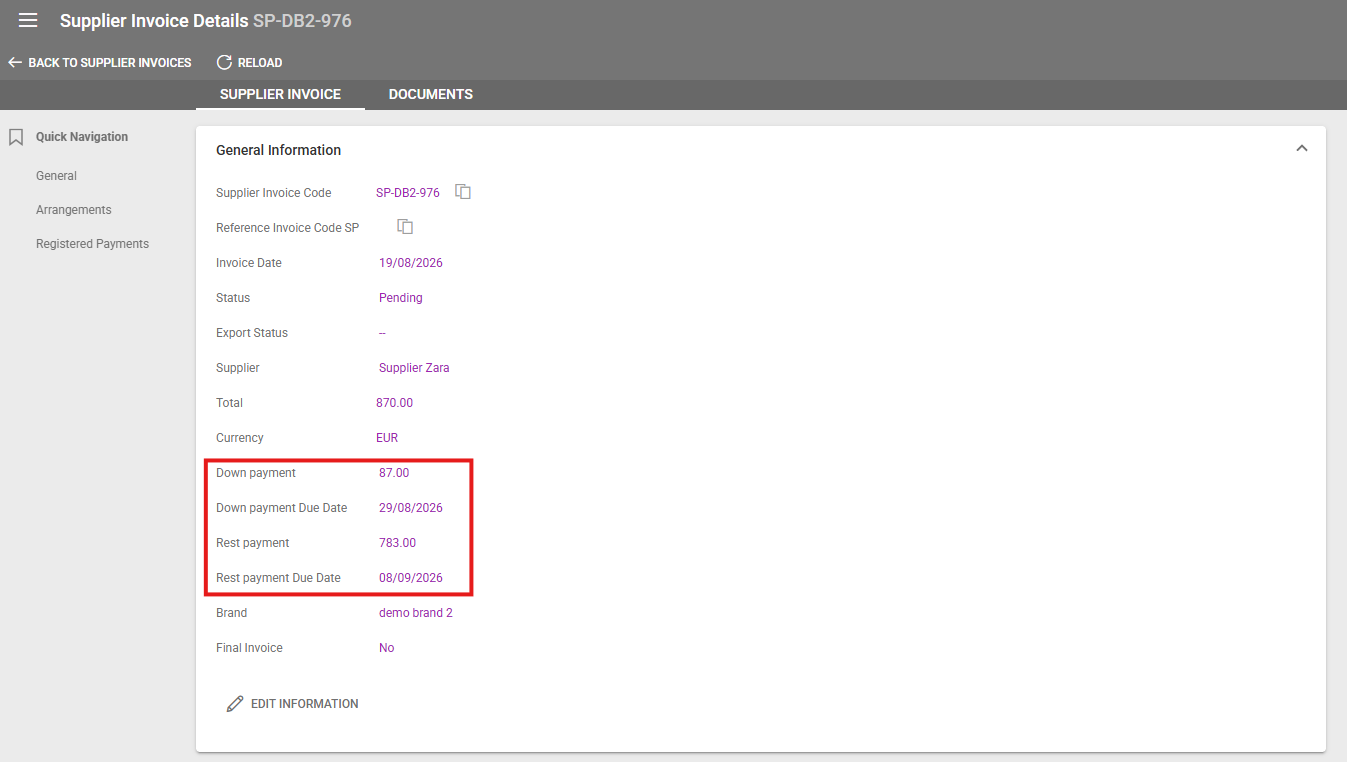
After a Supplier Invoice is saved, its down and rest payment amounts and due dates remain visible and editable in Supplier Invoice Details — as long as the invoice still has an outstanding amount.
When you update one payment amount field, Victoury automatically recalculates the other and updates the related Supplier Payment records to match.
Example:
Total 300
Payment registered 100
Outstanding amount 200
Changing the down payment to 20 automatically sets the rest payment to 180.
Once an invoice has no outstanding amount remaining, both payment fields are set to zero and can no longer be edited.
Financial Settings on Supplier Details
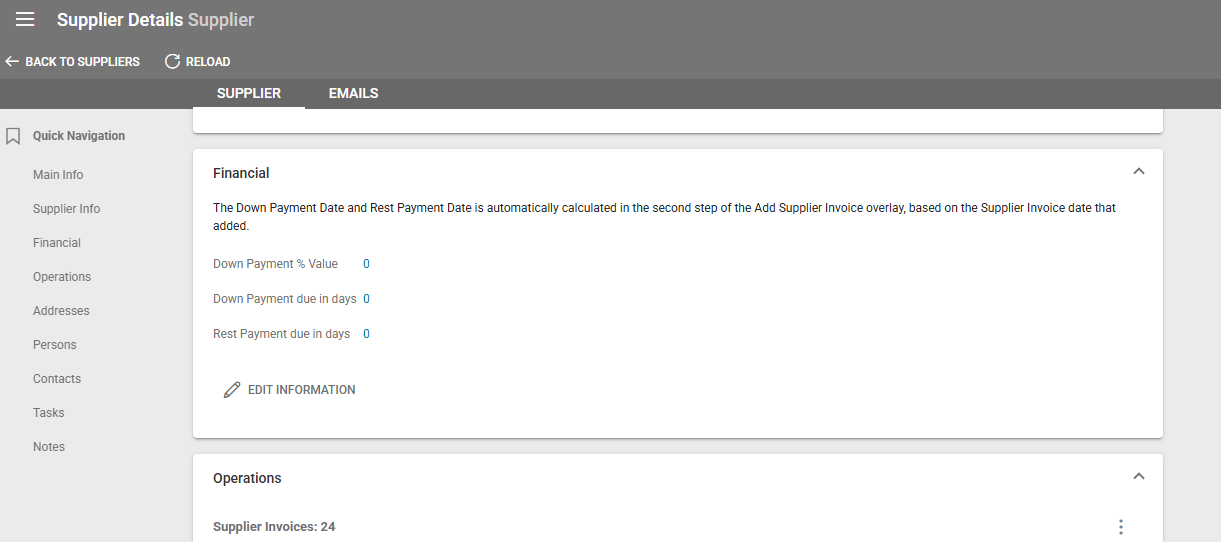
A new Financial section has been added to Supplier Details, letting you define default down and rest payment preferences per supplier:
Down Payment % Value — the percentage used to calculate the down payment amount
Down Payment Due in Days — the number of days used to calculate the down payment due date, based on the Supplier Invoice Date
Rest Payment Due in Days — the number of days used to calculate the rest payment due date, based on the Supplier Invoice Date
These preferences apply automatically whenever you create a Supplier Invoice for that supplier. You can still adjust the payment due dates and amounts manually during invoice creation if needed.